There’s a hidden command in Claude Code called /insights that studies how you work and then tells you exactly how to make it work better for you. Let’s walk through what it does, why it matters, and how to use it — even if you’ve never opened a terminal before.
—
First Things First: What Is Claude Code?
Before we talk about /insights, let’s make sure we’re on the same page about Claude Code itself.
You might already use Claude through a website (claude.ai) or an app. Claude Code is a different way to use Claude. Instead of chatting in a browser, you talk to Claude directly inside your terminal — that black (or dark-colored) window where you can type commands to control your computer.
If you’ve never used a terminal, that’s completely okay. Think of it as texting your computer instead of clicking buttons. You type a command, press Enter, and the computer responds. That’s all a terminal is.
Claude Code lives inside that terminal. You type what you want — “fix this bug,” “create a new file,” “explain this code” — and Claude does it right there, with direct access to your project files. No copying and pasting code back and forth from a browser.
If you want to install Claude Code, Anthropic has a setup guide here. The installation takes a few minutes, and the guide walks you through each step.
—
So What Is /insights?
Once you’ve been using Claude Code for a while — maybe a few days, maybe a few weeks — it quietly builds up a history of your sessions. What you worked on, what tools you used, where things got stuck.
The /insights command asks Claude to look back at all of that history and write you a detailed report. Not a vague “you used Claude a lot” summary. A structured document that answers specific questions:
- What kinds of projects do you work on?
- How do you tend to use Claude Code?
- Where does Claude keep making the same mistakes?
- What specific changes would prevent those mistakes?
That last question is the important one. We’ll get to it shortly.
—
How to Run It
This part is simple. If you already have Claude Code installed, here’s what you do.
Step 1: Open your terminal. On a Mac, you can find it by searching for “Terminal” in Spotlight (press Cmd + Space and type “Terminal”). On Windows, search for “Command Prompt” or “PowerShell” in the Start menu. On Linux, you probably already know where it is.
Step 2: Type this and press Enter:
claude
This starts a Claude Code session. You’ll see Claude’s interface appear in your terminal. It might take a moment.
Step 3: Once you’re inside Claude Code, type:
/insights
That’s it. Claude will think for a bit and then generate your report. The more sessions you’ve had, the richer the report will be. If you just installed Claude Code today, there won’t be much to analyze yet — come back after a week or two of use.
—
What the Report Looks Like
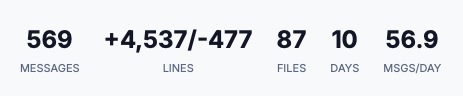
The insights report is organized into clear sections. Here’s a quick overview of each one and what it tells you:
At a Glance — A quick summary. What’s working well, what’s causing problems, and a few quick wins you can grab right away.
What You Work On — Your projects grouped by type (web apps, scripts, data analysis, etc.), with a rough count of how many sessions you’ve spent on each.
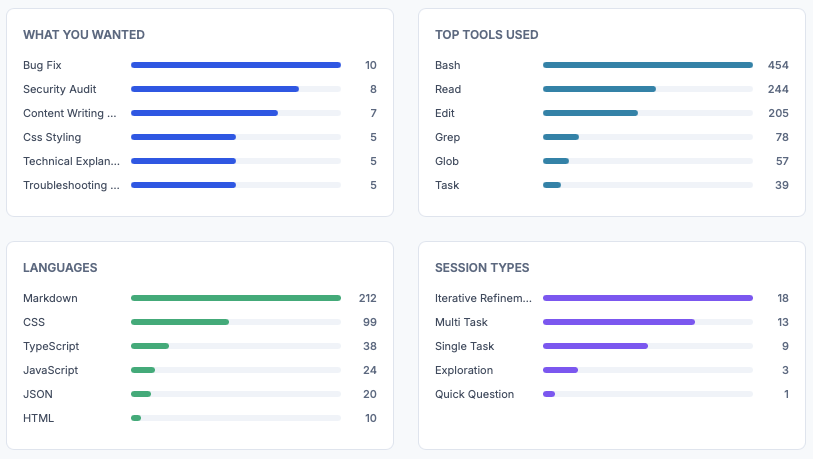
How You Use Claude Code — An honest look at your habits. Do you tend to give Claude short instructions or long ones? Do you let it work independently or guide it step by step? What tools does it use most when working with you?
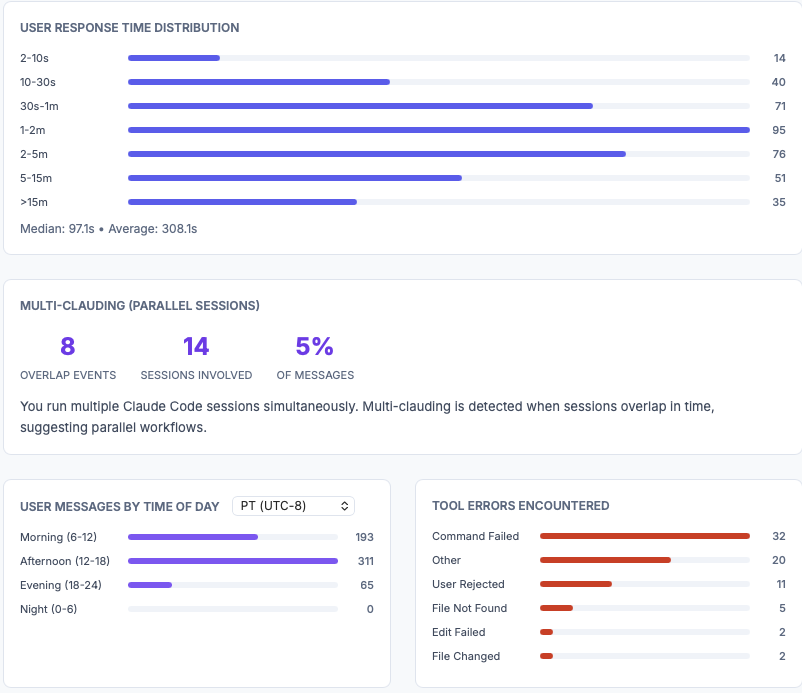
Impressive Things — Highlights of workflows you’ve developed that are genuinely effective. Think of this as Claude saying “you’re doing this well, keep doing it.”
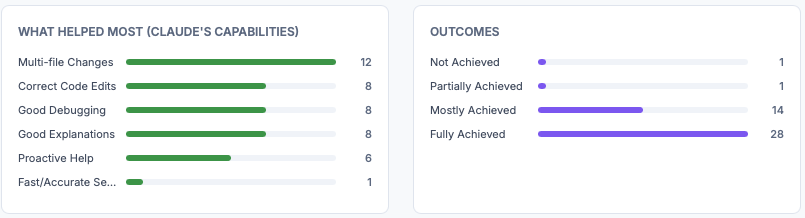
Where Things Go Wrong — This is where it gets useful. Claude categorizes the problems that come up across your sessions. Maybe it keeps picking the wrong approach before finding the right one. Maybe it misunderstands your project setup. Each problem includes a root cause — not just “this went wrong,” but “this went wrong because of this specific reason.”

Features to Try — Concrete suggestions for features you might not be using yet (we’ll cover the big ones below).
New Usage Patterns — Workflow ideas based on what you actually do, not generic advice.
On the Horizon — More ambitious automation ideas tailored to your specific work.
The report also includes some interesting numbers — which tools Claude uses most when working with you, what times of day you tend to work, how many sessions involved friction, and so on. It’s a mirror for your own habits.
—
The Part That Surprised Me: Claude Fixes Its Own Mistakes
Here’s the thing that makes /insights more than just a nice report. It doesn’t just describe problems — it generates the actual fixes you can apply so those problems stop happening.
Let me walk you through the four types of fixes it suggests.
Fix 1: Teaching Claude About Your Setup (CLAUDE.md)
When you start a new project with Claude Code, you can create a special file called CLAUDE.md that contains instructions Claude will read every time it works on that project. Think of it like a cheat sheet you hand to a new coworker on their first day: “Here’s how we do things around here.”
You create this file by typing /init inside Claude Code when you’re in your project folder. Claude will set up the file for you.
The insights report looks at situations where Claude made wrong assumptions about your project and writes the exact instructions that would have prevented those mistakes. You can copy these directly into your CLAUDE.md file.
For example, if Claude kept getting confused about how you deploy your code:
When deploying to production, always use `git push` to the configured
remotes (staging and production). Never say you can't deploy — git push
deployment is already configured.
Or if Claude kept making style changes that didn’t stick because something else was overriding them:
Before making any styling changes, always check for conflicting settings
in the framework's configuration files and global style overrides before
assuming your changes will take effect. Test with specificity-aware selectors.
Each suggestion comes with a note explaining which specific problem it’s designed to prevent. The report I received had seven of these, each targeting a different recurring issue.
What’s happening here is interesting: Claude is writing corrections for itself, based on patterns where it failed. It’s identifying its own blind spots and telling you exactly what to put in the file so it doesn’t make those mistakes again.
Fix 2: Custom Shortcuts for Repetitive Tasks (Skills)
Claude Code supports something called Skills — little instruction files that you can trigger with a single command. If you find yourself explaining the same task to Claude over and over (“audit this file for sensitive data,” “deploy this project”), you can save those instructions as a skill and run them with one word.
The insights report spots your most repetitive workflows and writes the skill files for you.
Here’s how you’d set one up. Don’t worry if this looks intimidating — I’ll break it down.
Example: Creating an audit skill
You would paste this into your terminal:
mkdir -p .claude/skills/audit && cat > .claude/skills/audit/SKILL.md << 'EOF'
# Security Audit Skill
Perform a security audit on the specified file:
1. Scan for real IP addresses, hostnames, usernames, API keys, file paths with PII
2. List all findings with line numbers
3. Replace each with a realistic but fake equivalent
4. Show a summary of all changes made
5. Ask user to confirm before saving
EOF
What this does, line by line:
mkdir -p .claude/skills/audit— Creates a folder for the skill inside your project. The-pflag means “create any parent folders that don’t exist yet, and don’t complain if the folder already exists.” Think of it like creating nested folders on your desktop.cat > .claude/skills/audit/SKILL.md << 'EOF'— This tells the terminal “I’m about to write a file. Everything I type after this, put it in that file. Stop when you see the word EOF.”- The lines in the middle are the actual instructions Claude will follow when you use this skill.
EOF— This marks the end of the file content. It stands for “End of File.”
After you’ve created this skill, you can just type /audit inside Claude Code and it will follow those steps automatically.
A note about where skills live: The example above puts the skill inside your project folder, so it only works in that project. If you want a skill available everywhere, change the folder path to use your home directory instead:
mkdir -p ~/.claude/skills/audit && cat > ~/.claude/skills/audit/SKILL.md << 'EOF'
The ~ symbol is a shortcut that means “my home folder.” This puts the skill in your global Claude Code settings.
Fix 3: Automatic Safety Checks (Hooks)
Hooks are automatic actions that run at specific moments — for example, every time Claude edits a file, or right before it commits code. Think of them like automated reminders that trigger at the right moment without you having to remember.
Hooks are defined in a settings file. You have two options for where to put them:
- For all projects:
~/.claude/settings.json(in your home folder) - For one project:
.claude/settings.json(in the project folder)
The insights report identifies situations where an automatic check would have caught a problem earlier and writes the hook for you.
For example, if you frequently ran into issues where CSS changes were getting overridden by something else in your project:
{
  "hooks": {
    "PostToolUse": [
      {
        "matcher": "Edit|Write",
        "hooks": [
          {
            "type": "command",
            "command": "echo '⚠️  CSS changed — check theme.json for conflicting global styles and !important overrides. Remind user to hard-refresh browser.'"
          }
        ]
      }
    ]
  }
}
What this does, piece by piece:
"PostToolUse"— This means “run this after Claude uses a tool.” Other options include"PreToolUse"(before),"Notification", and"Stop"."matcher": "Edit|Write"— Only trigger when Claude uses the Edit or Write tools. The|means “or.”"command"— The actual thing that runs. In this case, it just prints a reminder message. But it could be a script that runs tests, checks for conflicts, or anything else.
One powerful detail: if you use a PreToolUse hook and the command fails (returns an error), it blocks Claude from performing that action entirely. That’s how you can set up guardrails that prevent Claude from doing something before it happens.
Fix 4: Running Claude Without Babysitting (Headless Mode)
Headless mode lets you run Claude from a script without sitting there and interacting with it. You give it instructions, tell it what tools it’s allowed to use, and let it work. When it’s done, it saves the results to a file.
This is useful when you have a structured, multi-step process you run repeatedly.
#!/bin/bash
PHASE=$1
claude -p "Run the plan-phase workflow for Phase $PHASE. Research the codebase, \
generate plans, and verify all requirements." \
  --allowedTools "Read,Bash,Grep,Glob,Edit,Write,Task" \
  > "phase-${PHASE}-output.md"
echo "Phase $PHASE planning complete. Review output."
What this does:
#!/bin/bash— This line tells the computer “run this file using the bash shell.” Every script starts with something like this. Think of it as the file saying “I’m a script, not a regular text file.”PHASE=$1— Saves the first thing you type after the script name. So if you run./plan.sh 3, thenPHASEbecomes3.claude -p "..."— Runs Claude in headless mode. The-pflag means “here’s my prompt.” Everything inside the quotes is the instruction.--allowedTools "..."— Limits which tools Claude can use. This is a safety measure so Claude only does what you expect.> "phase-${PHASE}-output.md"— Saves Claude’s entire output to a file. The>symbol means “send the output to this file instead of showing it on screen.”
The insights report identifies workflows where you repeat the same multi-step process and suggests scripts like this to automate them.
—
The Feedback Loop: Why This Gets Better Over Time
Here’s the bigger picture of what’s happening:
- You use Claude Code across many sessions
/insightsanalyzes those sessions for patterns- The report generates specific fixes (CLAUDE.md instructions, skills, hooks, scripts)
- You apply those fixes, and Claude works better next session
- Repeat
Each cycle makes Claude a little more tuned to how you specifically work. The mistakes it made in previous sessions become the training material for preventing future mistakes.
The report even quantifies this. In one report, it showed 35 “wrong approach” events out of 63 total friction events — meaning Claude went down the wrong path more than half the time something went wrong. Most of those were preventable with better upfront context. The suggested CLAUDE.md additions directly targeted those specific wrong approaches.
—
The Bigger Suggestions
Beyond quick fixes, the report includes an “On the Horizon” section with more ambitious ideas. These aren’t generic — they’re based on what you actually do.
For example, if you frequently run the same type of review process, it might suggest setting up an automated pipeline that watches a folder, processes new files, generates reports, and stages the results — all without you touching anything. It might even suggest running multiple Claude instances in parallel to handle different files at the same time.
Each suggestion includes a “Getting Started” section explaining the technical approach and a ready-to-use prompt you can try.
—
What the Numbers Tell You
The report also includes statistics that help you understand your own habits:
Tool usage — Which Claude Code tools you lean on most (running commands, reading files, editing code, etc.). You might be surprised by the breakdown.
Session types — Whether you tend to iterate back and forth with Claude, give it single tasks, or use it for exploration and learning.
Languages — What types of files you work with most.
Friction types — A breakdown of what goes wrong, categorized. Wrong approach? Misunderstood requirements? Buggy code? Knowing the distribution helps you focus your fixes.
Satisfaction estimates — Claude’s estimate of how happy you were with each session. Take this with a grain of salt, but the patterns are interesting.
—
Why This Matters
Most AI tools treat every session as a blank slate. You start fresh, re-explain your setup, hit the same problems, and work around the same limitations every time.
/insights breaks that pattern. It’s an AI tool that observes its own failure modes across your sessions and generates the configuration to fix them. It’s not perfect — you still need to review and apply the suggestions. But the gap between “Claude keeps making the same mistake” and “Claude knows not to do that anymore” becomes a simple copy-paste operation.
The suggestions aren’t generic best practices. They come from your specific friction patterns, your specific workflows, and your specific tools. That’s what makes them useful.
If you use Claude Code and haven’t tried /insights yet, give it a shot. You’ll learn something about your own workflow, and you’ll almost certainly find a few easy improvements to make.
—
Quick Reference: Commands Mentioned in This Guide
| Command | What It Does |
|---|---|
claude
|
Starts a Claude Code session in your terminal |
/insights
|
Generates your personalized usage report |
/init
|
Creates a CLAUDE.md file in your current project |
/audit (example)
|
Runs a custom skill you’ve created |
mkdir -p
|
Creates a folder (and any parent folders that don’t exist yet) |
cat > file << 'EOF'
|
Creates a file with everything you type until you type EOF |
~
|
Shortcut for your home folder |
—
If any of this felt overwhelming, that’s normal. The terminal is unfamiliar territory for a lot of people, and these concepts stack on top of each other. Start with just running /insights and reading the report. You don’t have to apply everything at once. Pick one suggestion, try it, and see if it helps. That’s how everyone learns this stuff — one piece at a time.