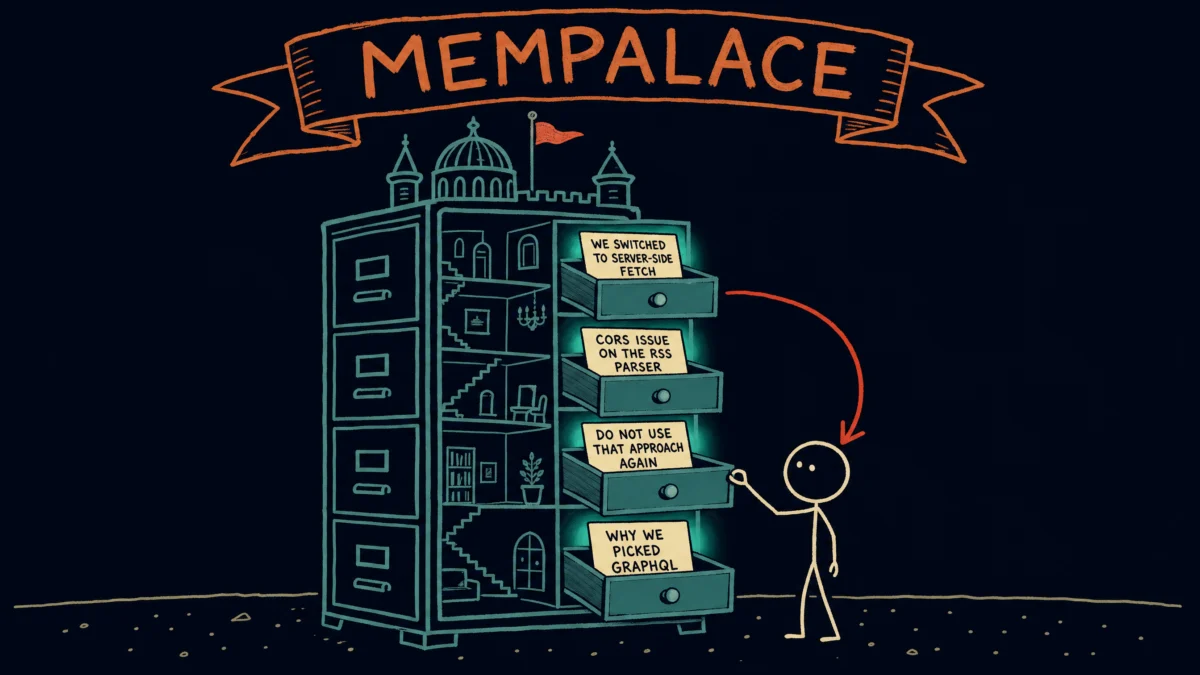
Every time you close an AI chat window, your AI forgets everything. The project decisions, the debugging sessions, the “let’s never do it that way again” moments — gone. MemPalace is a free, open-source tool that fixes this by storing your AI conversations locally and bringing them back automatically when you need them. Let’s walk through what it does and how to set it up — even if you’ve never installed a developer tool before.
By the End of This Post You Will Be Able To
- Install MemPalace and confirm from your terminal that it is running
- Create your own memory palace and set up your first project wings
- Export your past conversations out of Claude and ChatGPT into files you can import
- Mine both your project files and those exported chats into searchable memory
- Connect MemPalace to Claude Code over MCP so it pulls up relevant past context on its own, without you asking
- Check that the connection is live, and search your memories by hand from the terminal when you would rather stay in control of what gets used
This assumes you can open a terminal and type a command you are handed. You do not need to know Python, you do not need to know what MCP is, and you do not need any prior setup. Everything else is explained as it comes up.
First Things First: Why Your AI Has Amnesia
Here’s something that surprises a lot of people — AI tools like Claude, ChatGPT, and Cursor don’t actually remember your past conversations. Each time you start a new session, you’re talking to a blank slate. The AI has no idea what you discussed yesterday, what decisions you made last week, or what approach you tried and abandoned a month ago.
Think of it like working with a brilliant coworker who shreds all their notes at the end of every day. Every morning, you have to re-explain the project, the context, and the decisions you’ve already made. That’s what using AI tools feels like right now.
Some tools have basic memory features — Claude Code stores a small file of preferences, ChatGPT has a short memory list — but these are more like sticky notes than a filing cabinet. They capture a handful of facts, not the full picture.
MemPalace is the filing cabinet. It stores your complete conversations — word for word — on your own computer and makes them searchable. When you start a new AI session, MemPalace can automatically surface the relevant context from past conversations so you don’t have to repeat yourself.
What You’ll Need Before We Start
You need two things. If you already have them, skip ahead.
1. A terminal. This is the text-based window where you type commands to your computer. On a Mac, it’s an app called Terminal (or alternatives like iTerm or Ghostty). Think of it as texting your computer instead of clicking buttons — you type a command, press Enter, and the computer responds.
2. uv. MemPalace is written in Python, a programming language. You will never write a line of it. You just need a way to install and run Python programs, and uv is the fastest, tidiest one. It downloads Python for you if you don’t already have it, so this is the only thing you install by hand. Paste this into your terminal:
curl -LsSf https://astral.sh/uv/install.sh | sh
That’s the official installer from Astral, the company that makes uv. If you already use Homebrew on a Mac, brew install uv works just as well.
Close your terminal, open a fresh one, and check it took:
uv --version
A version number like uv 0.9.2 means you’re set.
If you’re not comfortable with any of this, that’s completely okay. These are one-time setup steps, and you won’t need to think about them again once they’re done.
So What Is MemPalace?
MemPalace is a local-first memory system for AI conversations. Milla Jovovich (yes, the actress who played the woman with the orange hair in The Fifth Element) and her collaborator Ben Sigman created it using Claude Code. It’s free, open-source, and everything stays on your machine — no cloud accounts, no API keys, no subscription fees.
The name comes from the ancient “memory palace” technique — a method where you mentally organize information by placing it in rooms of an imaginary building. MemPalace does something similar, but digitally and automatically.
Here’s how it organizes your memories:
- Wings are your major projects or areas of work. If you’re building an app called “PhotoSort” and also maintaining a blog, each one gets its own wing.
- Rooms are topics within a wing. Your PhotoSort wing might have rooms for “authentication,” “image processing,” and “deployment.”
- Halls are types of memory — facts you’ve established, decisions you’ve made, problems you’ve solved, preferences you’ve stated.
You don’t have to organize any of this by hand. MemPalace reads your conversations and automatically figures out the structure.
Under the hood, it uses two databases that live on your computer. ChromaDB is a vector database — it stores your conversations in a way that lets you search by meaning, not just exact words. So searching for “login problems” would also find conversations about “authentication errors.” SQLite is a simple database that tracks facts, relationships, and timelines — like “we switched from REST to GraphQL in March.”
Nothing leaves your machine. No data is sent to any server.
How to Set It Up
This takes about five minutes. Five steps, and you’re done.
Step 1: Install MemPalace
uv tool install mempalace
uv tool install is the command for programs you want to run by name, as opposed to code libraries you import inside a project. It gives MemPalace its own private sandbox so its dependencies cannot collide with anything else on your machine, then drops a shortcut into your PATH. PATH is just the list of folders your terminal searches through when you type a command. The practical result is that mempalace works from any folder, including from Claude Code’s plugin hooks, which need to find it when sessions start and stop.
Troubleshooting: If your terminal answers
uv: command not foundormempalace: command not foundright after you install, close the window and open a new one. The installer adds~/.local/binto your PATH, and only a fresh terminal picks that up.
Verify it worked:
mempalace --help
You should see a list of available commands. If you see an error instead, close and reopen your terminal.
Step 2: Initialize Your Palace
mempalace init ~/projects/my-app
Swap ~/projects/my-app for the real path to a project folder you’re actively working on. The folder is required, not optional. MemPalace reads your folder structure to detect the rooms it should create, so pointing it at a real project gives it something to work with.
This creates a .mempalace folder in your home directory — that’s where all your memories will live. The setup walks you through creating your first “wings” (projects) from what it found. Don’t overthink this. Start with one project. You can run init again on another folder later.
Step 3: Mine Your Existing Data
This is where MemPalace gets populated with things it can remember. You have two types of data you can feed it.
Project files — code, documentation, notes:
mempalace mine ~/projects/my-app
Replace ~/projects/my-app with the actual path to one of your project folders. This scans the files and extracts context that MemPalace can reference later.
Exported AI conversations — past chats from Claude, ChatGPT, or other tools:
mempalace mine ~/Downloads/my-chats/ --mode convos
The --mode convos flag tells MemPalace “these are conversations, not code files — parse them differently.”
What this does, piece by piece:
mempalace mine— the command that reads and stores data~/Downloads/my-chats/— the folder containing your exported chat files--mode convos— tells MemPalace to treat the files as conversation exports rather than source code
But where do you get those exported conversations? That’s what the next section covers.
How to Export Your AI Conversations
MemPalace can mine conversations from Claude, ChatGPT, and other AI tools — but first, you need to download them. Each platform handles this differently. Don’t worry if you’ve never done this — it’s just a few clicks.
Exporting from Claude (claude.ai)
- Open claude.ai in your browser and sign in
- Click your initials in the bottom-left corner, then select Settings
- Click the Privacy section
- Click Export Data and confirm when prompted
- Wait a few minutes — Anthropic will email you a download link
- Click the link in the email to download a ZIP file
The ZIP contains your conversations as JSON files. Unzip it into a folder — something like ~/Downloads/claude-export/ — and that’s what you’ll point mempalace mine at.
One thing to know — the export is JSON, which is a structured data format that looks like code. It’s not meant to be human-readable, but MemPalace knows how to parse it. You don’t need to open or edit these files.
Exporting from ChatGPT
- Go to chatgpt.com and sign in
- Click your profile icon in the bottom-left, then Settings
- Click Data Controls
- Under Export Data, click Export and confirm
- Wait 20-30 minutes — OpenAI will email you a download link (it expires after 24 hours, so don’t sit on it)
- Download the ZIP and unzip it into a folder like
~/Downloads/chatgpt-export/
Same deal — the files are JSON, and MemPalace handles the parsing.
If You Use Multiple AI Tools
You can mine each export separately and MemPalace will organize them all into your palace:
mempalace mine ~/Downloads/claude-export/ --mode convos
mempalace mine ~/Downloads/chatgpt-export/ --mode convos
Each command scans one folder of exported conversations and adds the memories to your palace. Run them one at a time — order doesn’t matter.
What If You Don’t Have Anything to Export Yet?
That’s perfectly fine. Skip this step entirely. Once MemPalace is connected to Claude Code via MCP (the next step), it will start capturing new conversations automatically. You can always come back and mine your old conversations later.
Step 4: Connect MemPalace to Claude Code
This is the key step — and it’s where we need to talk about MCP.
MCP stands for Model Context Protocol. Think of it as a universal adapter that lets AI tools connect to external services. Just like your phone uses Bluetooth to connect to headphones, Claude Code uses MCP to connect to tools like MemPalace. You set up the connection once, and then Claude Code can automatically talk to MemPalace without you doing anything.
Run this command:
claude mcp add mempalace -- mempalace-mcp
What this does, piece by piece:
claude mcp add mempalace— tells Claude Code “I want to add a new tool connection called mempalace”--— separates the name from the command that actually runs the toolmempalace-mcp— starts MemPalace’s MCP server, the piece that listens for requests from Claude Code.uv tool installput this command on your PATH alongsidemempalace, so you can run it from anywhere
If you ever forget that command, mempalace mcp prints it back to you.
After running this, quit Claude Code completely and reopen it. The connection only takes effect after a restart.
Step 5: Verify It’s Working
Open a fresh Claude Code session and ask something like:
“What do you know about my projects?”
If MemPalace is connected, you’ll see Claude make a tool call — something like mempalace_search — in its response. That means it’s automatically reaching into your memory palace to find relevant context.
You can also check from the command line:
mempalace status
This shows you what’s in your palace — how many wings, rooms, and memories you have stored.
What Changes After Setup
Here’s the before and after.
Before MemPalace: You start a new Claude Code session. Claude knows your name and a few preferences from its config file. You spend the first few messages re-explaining what you’re working on, what you’ve already tried, and what decisions you’ve made.
After MemPalace: You start a new Claude Code session and say “let’s pick up where we left off on the RSS parser.” Claude automatically searches your memory palace, finds your past conversations about the RSS parser, and responds with full context — “Last time, you were hitting a CORS issue and decided to switch to a server-side fetch approach. Want to continue from there?”
That’s the difference. You stop being your AI’s memory, and your AI starts having its own. To see what Claude Code gets wrong about how you work, run the /insights command, which reads your past sessions and writes the fixes for you.
If You’d Rather Search Manually
The MCP connection makes everything automatic — Claude searches your memories without you asking. But if you’d prefer to stay in control and search manually, the CLI works on its own too.
mempalace search "why did we switch to GraphQL"
This runs a search and shows you the results right in your terminal. You can then copy the relevant bits into your Claude Code session yourself. It’s more work, but you get full control over what enters your conversation — and it doesn’t use any of your AI’s context window on tool definitions.
The MCP approach does add about 2-3K tokens of tool definitions to every Claude Code session (out of a 200K or 1M context window). That’s a tiny fraction — about 1% at most — so the automatic recall is worth the trade-off for most people. To watch how full your context window gets, build your own statusline.
Quick Reference: MemPalace Commands
| Command | What It Does |
|---|---|
uv tool install mempalace |
Installs MemPalace as a command you can run from any folder |
mempalace init ~/path/to/project |
Creates your palace and detects rooms from a project folder |
mempalace mine ~/path/to/folder |
Scans project files and stores them as memories |
mempalace mine ~/chats/ --mode convos |
Imports exported AI conversations |
mempalace search "your query" |
Searches your memories from the terminal |
mempalace status |
Shows what’s in your palace (wings, rooms, memory count) |
mempalace wake-up |
Outputs your critical facts (~600-900 tokens) for quick context loading |
claude mcp add mempalace -- mempalace-mcp |
Connects MemPalace to Claude Code via MCP |
If any of this felt like a lot, that’s normal — you just set up a database, a search engine, and a protocol connection in five commands. Start with one project wing and one mined folder. Use it for a week and see if Claude starts feeling like it actually knows you. You don’t need to mine every conversation or organize every room. The palace grows on its own — one conversation at a time.